
Introduction
Toolbar
Clicking on an Excel file will open spreadsheets that include examples of the use of functions.
The GIAnalyzer comes with three types of Excel files: Workbooks – examples, Workbooks – templates and Workbooks – manual calculations. The most convenient way to learn new functions is by using files in the section Workbooks – examples. Files in sections Workbooks – templates can be used to illustrate possible uses and as a basis for further developments, according to your needs. Files in sections Workbooks – manual calculations, located within the Interest Rate Derivatives and Inflation Derivatives buttons, include manual calculations with results equal to the function results.
The purpose of the Calculation Tools group is to reduce calculation time while working with files including spreadsheets with heavy calculations.
The Support group includes the documentation, information about your license and our contact information, for questions.
When the Gamma Impact Analyzer is installed, a new GIAnalyzer tab is added to the Excel toolbar. The buttons in the GIA toolbar are divided into four groups: Financial Instruments, Additional Functions, Calculation Tools and Support.
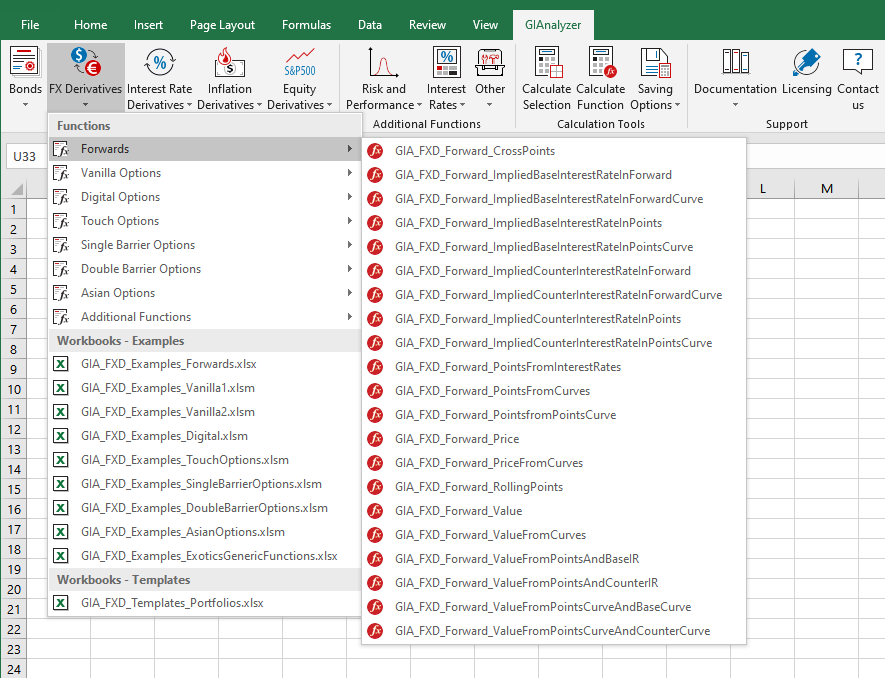
Each button in the Financial Instruments group is responsible for a different class of financial products, which is reflected in the tab's name.
The Additional Functions group consists of functions which are not related to the specific financial instruments. The functions in this group enable the user to perform various calculations of risk and performance measures, calculations involving interest rates, and interpolations.
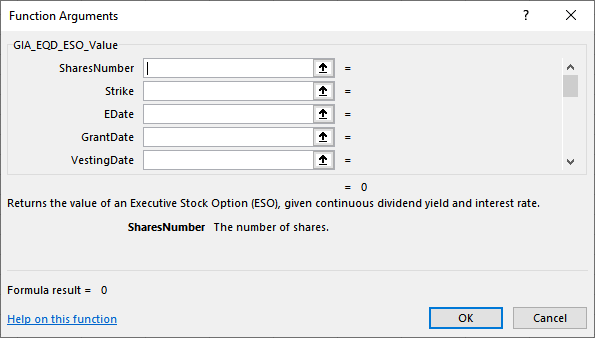
Clicking on any button within Financial Instruments and Additional Functions groups will display the list of functions and Excel files. Clicking on a function name will bring up a function dialog box that includes the function and description of its arguments.
Functions
All function names in the Financial Instruments group follow the same structure: GIA_XXX_ YYY_ZZZ, where XXX is a subgroup name, YYY is an instrument name and ZZZ is an output or an output with a type of input data.
Following are a few examples: GIA_IRD_IRSAmort_ValueOfFixedLeg returns the value of the fixed leg in an IRS with an amortizing schedule.
GIA_FXD_Vanilla_GreeksFromSurfaceAndCurves returns the Greeks of an FX vanilla option, given a volatility surface and the interest rate curves of the base and of the counter currencies. GIA_EQD_ESO_Value returns the value of an Executive Stock Option (ESO), given a continuous dividend yield and interest rate.
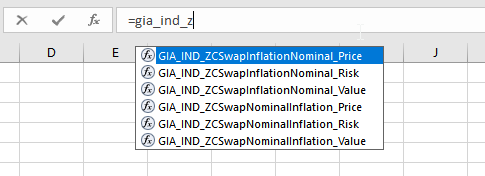
For example, if you want to calculate the risk measures of the zero coupon inflation swap, you can easily find the relevant function by typing in the formula gia_ind_z. The functions related to this instrument will be displayed:
In the Additional Functions group, the name structure is GIA_XXX_ ZZZ:
GIA_IR_ForwardRateFromIRcurve returns the forward interest rate, given an interest rate curve. This structure makes it easy to search for a required function.
Another way to find the function you are looking for is by using the toolbar, as described above.
Excel Workbooks
Clicking on an Excel file will open spreadsheets that include examples of the use of functions.
As said, GIAnalyzer comes with three types of Excel files: Workbooks – examples, Workbooks – templates and Workbooks – manual calculations. The most convenient way to learn new functions is by using files in the section Workbooks – examples. Files in section Workbooks – templates can be used to illustrate possible uses and as a basis for further developments according to your needs. Files in Workbooks – manual calculations, located within the Interest Rate Derivatives and Inflation Derivatives buttons, include manual calculations with results equal to the function results.