
Introduction
Installation
GIAnalyzer can be installed either online or offline, but online installation is recommended.
- If installed online, the software may be updated to a new version automatically.
- If installed offline, the software should be updated manually.
You must be an administrator on the computer on which you want to install GIAnalyzer. If you don’t have administrator rights or if your system administrator has set policies to prevent the installation of external software, please contact the IT support at your organization.
Note for system administrators:
GIAnalyzer is a VSTO add-in (COM add-in) for Microsoft Excel. To install the software for users in your organization, please choose the preferred method (online or offline) and repeat all the steps on each user’s computer. To install GIAnalyzer for all users on a computer, run the installation file as Administrator.
Online Installation
- Before you begin installation, save and close all Excel files.
- Open the webpage www.gianalyzer.com/downloads/ > Click the button Online version.
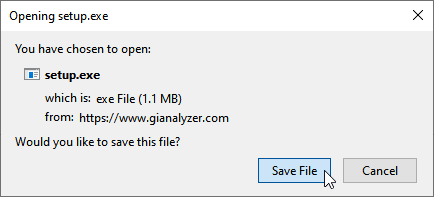
- The installer file will download > Click Save File.
Note: If prompted to Run the file, click Run and proceed to step 4.
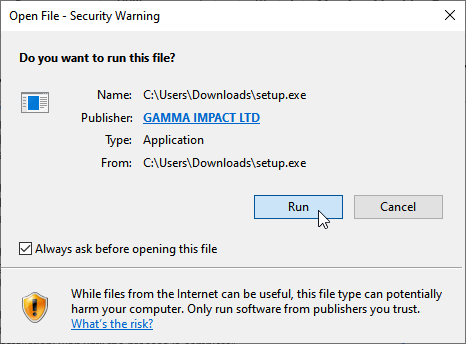
In your browser’s downloads, find the setup.exe file > Click on the file > A window will open > Click Run to run the installer file:
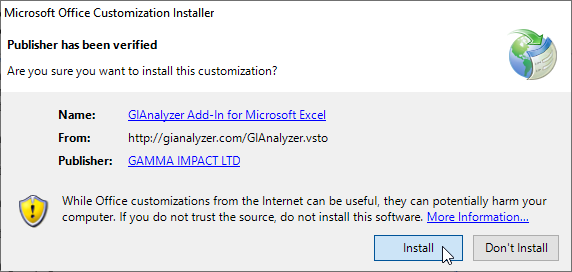
4. In a few seconds, the installation window will open > Click Install:
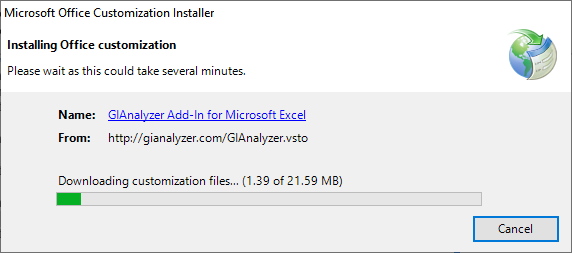
5. Installation will take less than a minute:
6. Once the process is complete, you will see the message that GIAnalyzer was successfully installed:
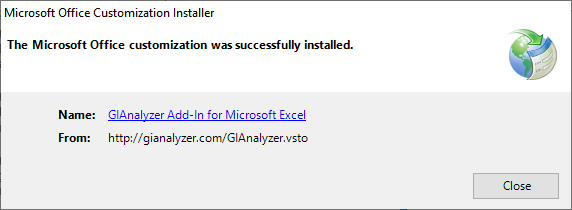
7. Open Excel > You will see the GIAnalyzer tab on the ribbon:

Offline Installation
Before you begin installation, save and close all Excel files.
Open the webpage www.gianalyzer.com/downloads/ > Click the button Offline version.
Save the archive GIAnalyzer_offline.zip to your computer to any preferred destination > Extract files.
Among the extracted files, find the GIAnalyzer.vsto file:
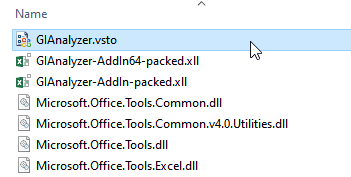
5. Double-click on the file > A window will open > Click Install:
6. Installation will take less than a minute:
7. Once the process is complete, you will see the message that GIAnalyzer was successfully installed:
8. Open Excel > You will see the GIAnalyzer tab on the ribbon: