
Using the functions
Last updated 10 November 2026
GIAnalyzer's functions work like Excel's own: type them in a cell, give them arguments, and they return a value or a table. Each function, with its arguments, is described in the function reference.
How the functions are named
Every name starts with GIA_, then the module, then the instrument, then the
output: GIA_module_instrument_output.
| Module | Functions for |
|---|---|
| Bonds | Bonds |
| FXD | FX derivatives |
| IRD | Interest rate derivatives |
| IND | Inflation derivatives |
| EQD | Equity derivatives |
For example:
GIA_FXD_Vanilla_GreeksFromSurfaceAndCurvesreturns the Greeks of an FX vanilla option, from a volatility surface and the interest rate curves of the two currencies.GIA_IND_ZCSwapNominalInflation_Riskreturns risk measures of a zero coupon inflation swap.GIA_EQD_ESO_Valuereturns the value of an executive stock option.
Functions that are not tied to one instrument leave out the instrument:
GIA_group_output. The groups are RPM (risk and performance measures), IR
(interest rates), VaR (Value at Risk) and Other. For example,
GIA_IR_ForwardRatefromIRCurve returns a forward interest rate from an
interest rate curve.
Find a function
In the cell. Type
=gia_and the start of the module or instrument. Excel lists the matching functions as you type. For example,=gia_ind_zlists the zero coupon inflation swap functions.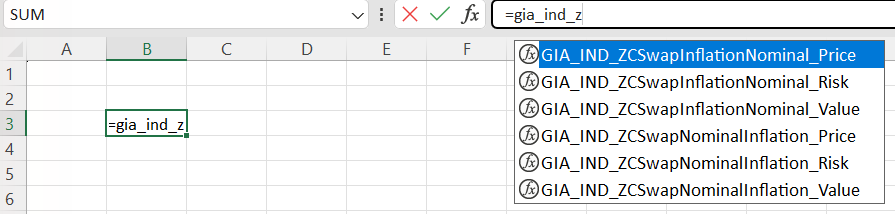
On the ribbon. Open the module's menu on the GIAnalyzer tab and go down to the instrument.
In the function reference. Search by name, instrument or output. The reference lists every function; the ribbon menus don't list them all.
Insert a function from the ribbon
- Select the cell for the result.
- On the GIAnalyzer tab, open the module's menu and click the function's name.
- GIAnalyzer writes the function into the cell and opens Excel's Function Arguments window, with a description of each argument.
- Fill in the arguments and click OK.
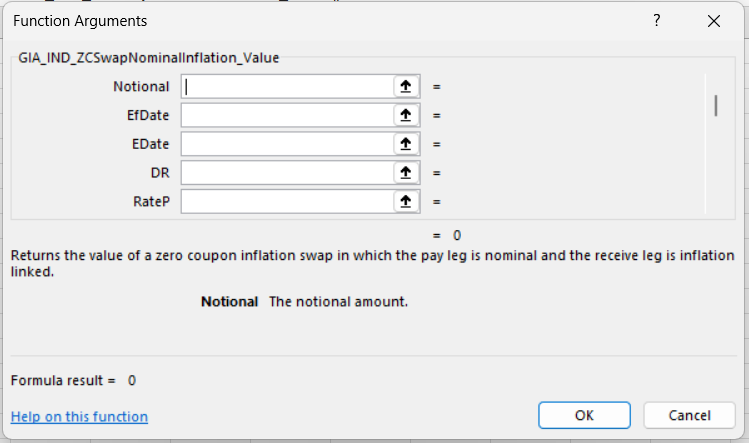
While the Function Arguments window is open, GIAnalyzer's functions don't
calculate, so that a heavy function doesn't run again at every key you press.
The window shows #NULL! as the result; that is expected. The result appears
in the cell when you click OK.
A function that isn't on the menus can be typed into a cell like any other.
Arguments
- Text arguments, such as a day-count basis or a compounding basis, can be typed in any case:
act/365andACT/365are the same. The values each argument accepts are listed in the function reference. - Curves are given as two ranges of the same length: dates, and the rates or discount factors for those dates.
- Dates are ordinary Excel dates.
- In the example workbooks, the cells are laid out in the order of the function's arguments. Copying an example sheet is a quick way to set up a new calculation. See Example and template workbooks.
Large workbooks
A workbook with many GIAnalyzer functions can take a long time to recalculate. Set Excel's calculation to manual and use the calculation tools to recalculate only what you need.
When a function doesn't calculate
GIAnalyzer's functions calculate only with a valid licence that includes their
module. If the licence has expired, or doesn't include the module, the function
returns no result: depending on the function, the cell shows #NULL! or 0.
The Other and Value at Risk functions need a Full licence. Open Licensing
to check the end date and the active features. See
Activating your licence.
If the cells show #NAME?, Excel doesn't recognise the function: check the
name for typing errors. If every GIAnalyzer function shows #NAME?, the
functions didn't load when Excel started: restart Excel, and if that doesn't
help, run the Repair Tool (see
If GIAnalyzer doesn't load).