
FAQ — Errors
Problems with installation? Use this Repair Tool
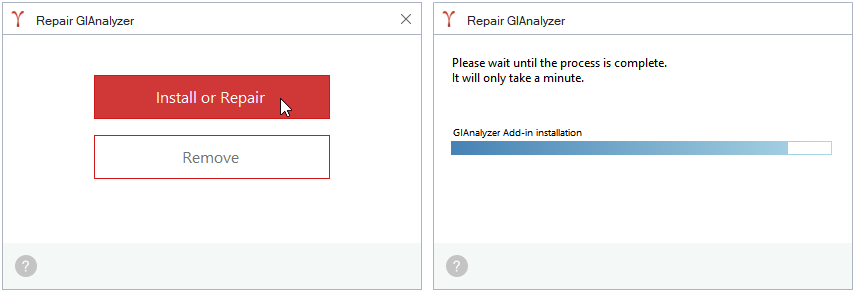
This Repair Tool will fix the most common issues and help install, uninstall or reinstall GIAnalyzer on your computer.
- Some systems are overzealous and may block EXE files. You may need to disable your antivirus software temporarily for the time of repairs.
- Click here to download Repair Tool > Save the file > Find "Gianalyzer.Repair.exe" in your browser downloads folder > Double-click to run the file.
- Select "Install or Repair" > Click Yes, if prompted to install necessary Microsoft components > Wait for the process to complete > Done, GIAnalyzer should be installed now.
- Select "Remove" if you want to completely remove GIAnalyzer from your computer.
There is no GIAnalyzer tab in Excel after installation
Sometimes Excel deactivates third-party add-ins. Please activate manually:
Open Excel > File > Options > Add-Ins > Select “Manage Com Add-Ins” > Go > Check the box “GIAnalyzer Add-in for Microsoft Excel” > Activate.
Note, GIAnalyzer tab will not appear in Excel, if you are using Office 365 installed from Microsoft Office Store. Office 365 (now called Microsoft 365) from the Office Store is a partially cloud version, built with somewhat different technologies. GIAnalyzer is only compatible with the fully installed and downloaded versions of Office.
Error: An exception occurred during hash validation
Most likely, your antivirus program or firewall settings block the installation. Some programs are suspicious of VSTO solutions and EXE installer files.
- Disable your antivirus program temporarily.
- Install GIAnalyzer.
- Enable your antivirus program back.
Error: The customization cannot be installed because another version is currently installed
- Uninstall the previous version of GIAnalyzer > Download and install the latest version.
- If the error persists: Press WIN+S > Type “cmd” in the search box to open Command Prompt window > Paste “rundll32 dfshim CleanOnlineAppCache” > Press Enter > Close the Command Prompt > Install GIAnalyzer again.
Error: The following Microsoft Office solution cannot be installed due to a general installation error
Some Microsoft prerequisites are missing on your computer. Installation of the prerequisites may require administrator rights, please contact your IT system administrator.
- Install these Microsoft components:
2. Install GIAnalyzer again.
Error: The value of the property ‘type’ cannot be parsed
Some Microsoft prerequisites are missing on your computer. Installation of the prerequisites may require administrator rights, please contact your IT system administrator.
- Install (or reinstall) Visual Studio 2010 Tools for Office Runtime.
- Install GIAnalyzer again.
Error: The manifest may not be valid or the file could not be opened
Some Microsoft prerequisites are missing on your computer. Installation of the prerequisites may require administrator rights, please contact your IT system administrator.
- Install Windows updates, if any.
- Install .NET Framework 4.5.2.
- Install GIAnalyzer again.
Error: Customized functionality in this application will not work because the certificate used to sign the deployment manifest or its location is not trusted
- Open Control Panel > Network and Internet > Internet Options > Security tab > Select Trusted Sites > Click the Sites button > In the box “Add this website to the zone” type httрs://giаnаlyzеr.com > Click Add > Close > OK, our website is added to the list of trusted websites.
- Install GIAnalyzer again.
Error: Unable to install this application because an application with the same identity is already installed
- Close Excel.
- Open C:\Users\YourName\AppData\Local\Apps > Find the folder '2.0' with ClickOnce cache > Delete the folder. Note, after this operation you may need to reinstall other ClickOnce add-ins, if you have any.
- Install GIAnalyzer again.
Error: Downloading file: GIAnalyzer.vsto did not succeed
Most likely, your antivirus program or firewall settings block the installation. Some programs are suspicious of VSTO solutions.
- Disable your antivirus program temporarily.
- Install GIAnalyzer.
- Enable your antivirus program back.
If you are installing the offline version, also make sure to follow these steps:
- Close Excel.
- Download the offline version > Save the archived file to a new folder a local disk (not a network drive). For example, a new folder in Downloads.
- Extract the zip archive > Find the file “GIAnalyzer_4_2_0_1.zip” > Extract files as well.
- Find the file “setup.exe” > Double-click to run the installer > Install > Done.
- Open Excel > You should see GIAnalyzer tab.